OBJECTIVE
1) Hyperion Interactive Reports and exploring its features
2) Oracle Business Intelligence (OBIEE) and exploring its features.
3) Creating Essbase Cube using Essbase Studio and reports in Web Analysis.
4) Creating Essbase Cube using Essbase Studio and reports in OBIEE Answer
Step#1 Open IR Studio

Step#2 Creating a new Database connection is always the first step to retrive data from any database.The below screen shows how to connect to database I'm using MS Access to Create Sales Analysis Report

Step#3 IR has no propertory driver for MS-Access so you need to select ODBC-ODBC Connectivity type.(In another example will show you connecting with Oracle Database)

Step#4 Select the DSN the once you created to connect to your database. Slaes_Analysis_DSN in this example
Step#5 The connection is saved as seprate file with .OCE extention Open Database COnnectivity.
Step#6 The connection is created now its time to create the query.The query will be created based on the business requirement. Below is the list of reports needs to be created and corresponding datamodel is given.
Requirement #1 Revenue_by_quarter
Requirement #2 countable_by_quarter
Requirement #3 Revenue_by_store
Requirement #4 Countable_by_store_type
Requirement #5 Revenue_by_state
Requirement #6 Revenue_by_item
Note: See the attached sheet to understand the business requirment :http://www.box.net/shared/sfyrd26c5r
a) Requirement #1 Revenue_by_quarter Report Layout

b) Requirement #2 Revenue_by_quarter Report Layout
b) Requirement #6 Revenue_by_item
c) Hierarchy Model
d) Data Model
 Note : Download the Database from http://www.box.net/shared/fl0liqn69v
Step#7 In order to build the report you need to have[ Below information must be given in High Level Documentation]
1) Report Layout
2) Data Model [Dimensions/Member/Fact required to build report, Joining information
3) Data Mapping Document.[Which element maps to which table.column]
Once you have all the information, then you are ready to create report. The first step to create report is to build the Query. The IR query is equalent to SQL Query. The SQL query format is
Select Col1, COl2 from tablename where <condition> order by <col>
IR equalent Col1,Col2 = Request
Where Condition = Filter
Order By = Sort
Step#7 Drag and Drop the Dimension and fact tables from the Elements Tab and place in content pane as given below. Make sure you draw the correct joining. You'd better ask your datamodeler to provide you correct joining criteria.
Step9 Process the query the below output should be generated.
Step10. You can see the report layout, the business wants to see the report in cross tabular layout[Pivot] so we need to place one pivot rather than displaying the report in tabular format.So we need to insert Pivot.
 Step#11 In order to design Pivot we need to specify its Column, Row and fact. Per business requirement we need to display the Quarter in Col and Fact in row. So whlie desiging Pivot we need to select Dimension and Fact appropriately.
Step#11 Business people want to see the graphical Chart besides the Pivot so we need to design the Chart as well based on the query.
 Step#12 Now lets draw the chart and place all the Object togather.
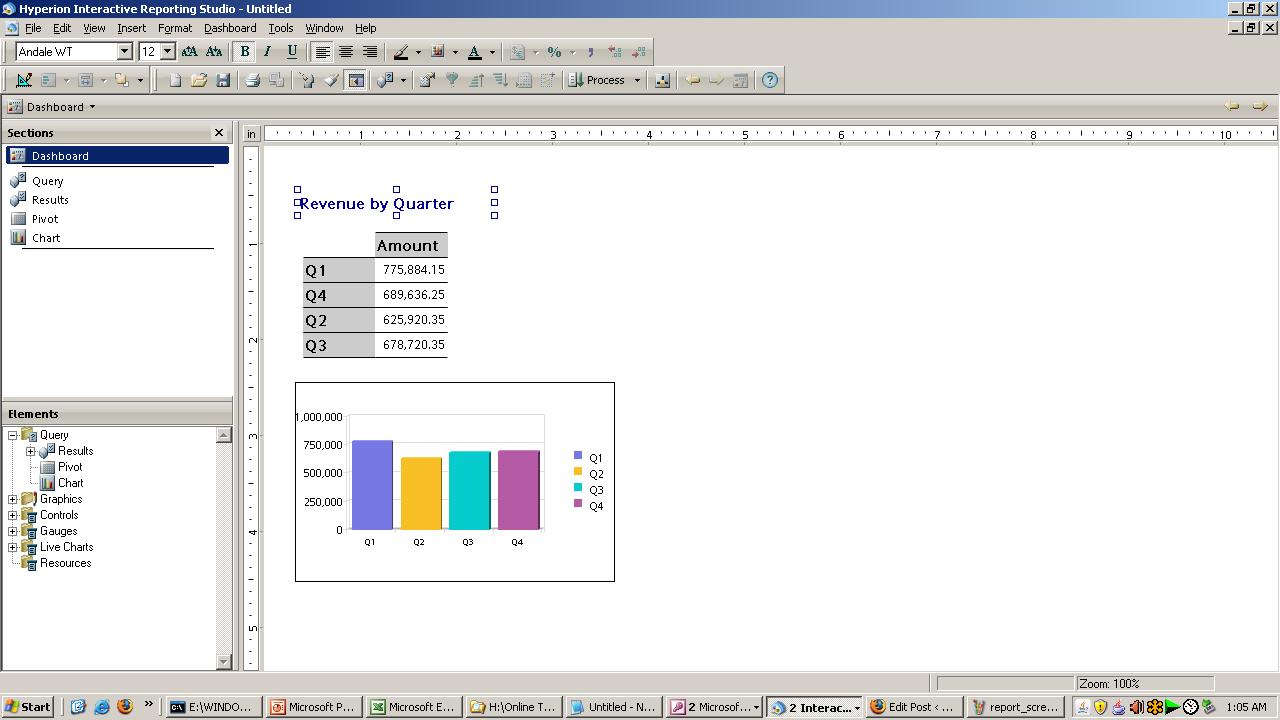
Step#13 Its time to place all these objects togather so we need to place Pivot and Chart togather in Dashboard. First of all you need to add the dashboard Insert->Dashboard
Step#14 And Finally our Dashboard would look like this. So the one peice of report is ready. Similarly we need to create report for other requirements. And one more important thing is that we need to design the "Level Of View" or Dimension Hierarchy so people can drill down /up or analyze the requirement with different views. Step#14 The other peice of report is
Step#15 And complete Dashboard would look like this.
Step#16 Download the complete tutorial from
Download the video tutorial from
CLass#1 http://www.box.net/shared/gk9hb9ehf6
Class#2 http://www.box.net/shared/nfqqipo9cs
[use codec www.gotomeeting.com/codec to view the videos]


 Note : Download the Database from http://www.box.net/shared/fl0liqn69v
 Step#8 Now drag the column you want into the request area. In our requirement we need to Quarter and Amount Sales. The Amount Sales should be sum because we want cumulative sales for entire Q1,Q2,Q3,Q4

 Step#11 In order to design Pivot we need to specify its Column, Row and fact. Per business requirement we need to display the Quarter in Col and Fact in row. So whlie desiging Pivot we need to select Dimension and Fact appropriately.
 Step#12 Now lets draw the chart and place all the Object togather.

 Step#14 The other peice of report is


